The short answer: no. Merging PDFs does not lose quality — not a little, not theoretically, not in edge cases that matter. A merge copies each page's content exactly as it is. The tenth page of the merged file is byte-for-byte the same content as the tenth page of the original.
This is one of the most-asked PDF questions, and the anxiety behind it is understandable: so many digital operations do degrade things (looking at you, JPEG re-saves). Merging isn't one of them. Here's why, and what actually can change.
Why merging is lossless
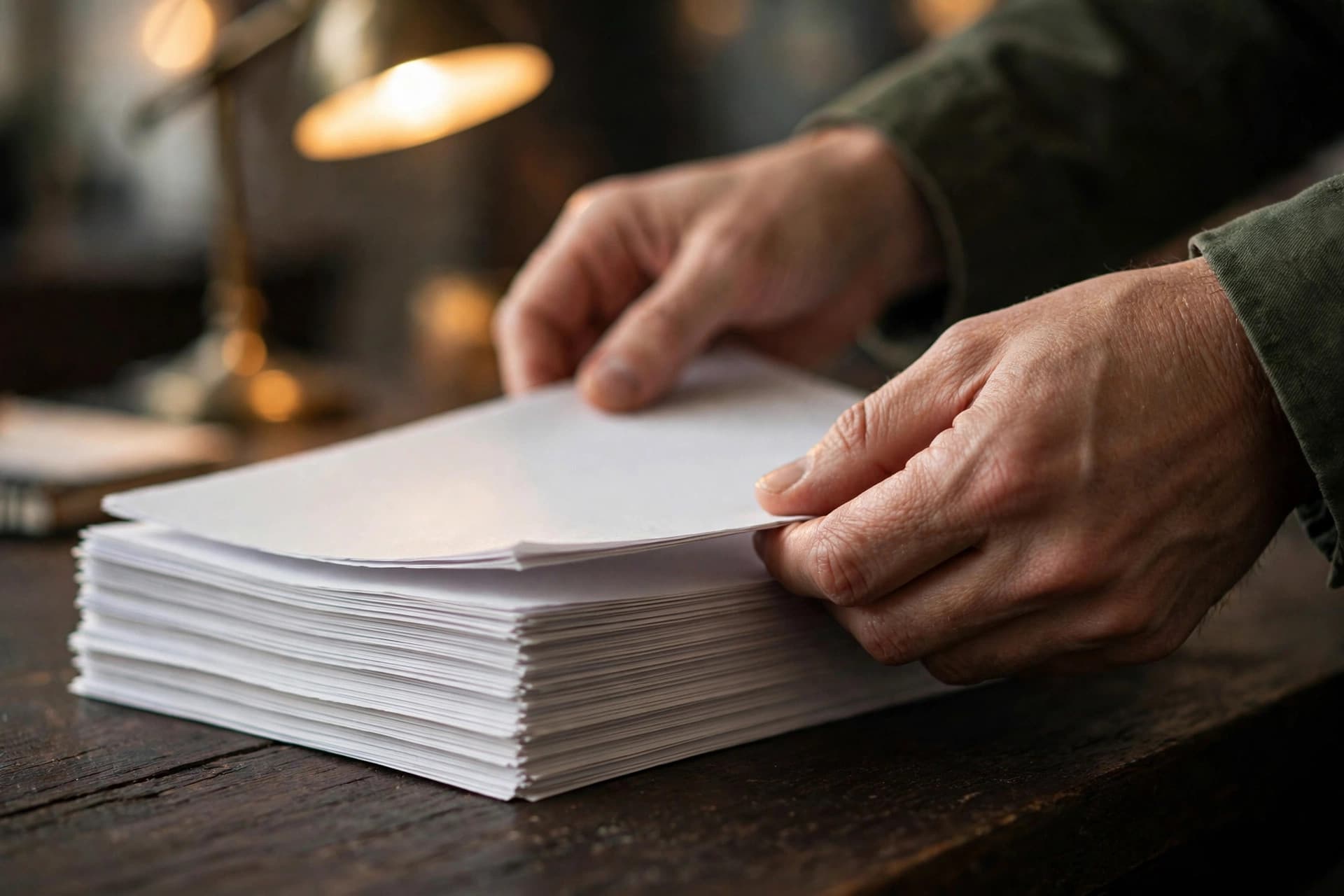
A PDF is a container of independent pages, each with its own content streams — text, vector graphics, embedded images, fonts. Merging takes those pages and places them, unchanged, into a new container. Nothing is re-rendered, re-encoded, or "printed" in the process.
Think of it as restacking papers, not photocopying them. The pages don't pass through any quality-affecting step. PDFEdit's merger copies pages with pdf-lib directly — no rasterization, no image conversion, no intermediate formats.
Concretely, merging preserves:
- Text — every character, font, and size, exactly
- Images — embedded at their original resolution and compression
- Vector graphics — lines, shapes, charts, infinitely scalable as before
- Page sizes and orientations — each page keeps its own dimensions
- Colors — no color space conversion
What people mistake for quality loss
If a merged PDF seems worse, one of these actually happened:
One source was already low quality. Merging preserves flaws faithfully. If page 3 looks blurry in the merged file, open the original page 3 — it was blurry there too. Merging can't add detail that isn't there, and it can't fix a bad scan.
Something compressed it afterward. The common real culprit: merge → compress for email → "the merge ruined my quality." No — the compression reduced quality (that's its job). Merging was innocent. Keep your uncompressed merged original.
A weak viewer. Some built-in viewers render PDFs poorly — blurry text at certain zooms, washed-out images. Open the same file in a different viewer before blaming the merge.
Expectation vs. reality on mixed sources. A crisp vector-text contract merged with a 150 DPI scan will show an obvious quality difference between pages. That's not loss — it's the two sources being different. Each page is exactly as good (or bad) as its original.
What merging actually changes
Honesty requires the full picture. Merging doesn't touch quality, but it does change a few things:
- File size becomes roughly the sum of the inputs. Merging never shrinks a file.
- Page numbering doesn't continue across files. Two documents each numbered 1–10 become pages 1–10, 1–10 in the merged file. Add fresh page numbers if you need one sequence.
- Interactive elements (form fields, some annotations) can behave differently after a merge depending on the tool. For standard documents this is a non-issue; for complex fillable forms, test the merged result.
- Bookmarks/outlines from source files may not carry over in basic mergers. If navigation matters, check the output.
- Metadata (title, author) comes from the merge, not the sources — cosmetic, and editable with a metadata editor.
None of these affect the visual or print quality of a single page.
Merge vs. compress: don't confuse them
These two operations are opposites, and mixing them up causes most of the confusion:
| Merge | Compress | |
|---|---|---|
| Quality effect | None (lossless copy) | Reduces (re-encodes images) |
| File size | Sum of inputs | Smaller than input |
| Text selectability | Unchanged | May become image-only |
| Reversible detail | N/A | Detail lost is gone |
The safe workflow: merge first (lossless, keep this as your master), compress a copy for sending. Never compress your only copy of an important document.
The one real exception: re-compression
There is exactly one merge-adjacent scenario where quality genuinely drops: merging files that were already compressed, then compressing the merged result again. Each compression pass re-encodes images, and quality degrades cumulatively — like photocopying a photocopy.
The fix is workflow, not worry:
- Merge from the best sources you have. If you have both the original scan and a compressed email copy, merge the original.
- Compress once, at the end. Merge → structure → compress, in that order, one compression pass total.
- Never compress a compressed file unless a hard limit forces it — and if it does, go back to the pre-compression original and compress that harder instead.
This is the only "merging hurt my quality" story that holds up, and the culprit was always the double compression, never the merge.
How to verify a merge preserved quality
Skeptical? Verify it yourself in two minutes:
- Compare file sizes. The merged file should be roughly the sum of the inputs (plus a tiny overhead). If it's much smaller, something compressed it — investigate.
- Zoom test. Open a source PDF and the merged file side by side. Zoom both to 200% on the same page. They should be indistinguishable.
- Check images at full size. Extract a page as an image (PDF to JPG) from both the source and the merged file, and compare resolutions. They'll match.
- Text selection. Select and copy a paragraph from the merged file — it should behave exactly like the source (selectable stays selectable; merging doesn't rasterize text).
If all four check out — and they will — you can trust the merge completely.
Merging and printing
One last angle: does merging affect print quality? No — for the same reason it doesn't affect screen quality. The printer receives the same page content it would have received from the source file. Mixed page sizes print fine with "fit to page" settings, and color profiles travel with the pages.
The only print consideration is paper size: if your merged document mixes A4 and Letter, tell the printer (or set the print dialog) to handle it — "fit to printable area" is the setting that makes mixed sizes a non-issue.
Do it with PDFEdit
Merge PDFs with zero quality loss — pages copied exactly, 100% in-browser, no uploads. Then compress a copy for sharing only if the file needs to be smaller.
The bottom line
Merging is the safest operation in the PDF toolkit: pure copying, zero degradation. If someone tells you merging reduces quality, they're thinking of compression — a different tool doing a different job. Merge freely; compress deliberately.