The short answer: drop your PDF into a free online compressor, pick a compression level, and download the smaller file. A 25 MB scan can drop to a fraction of that size. Takes about thirty seconds.
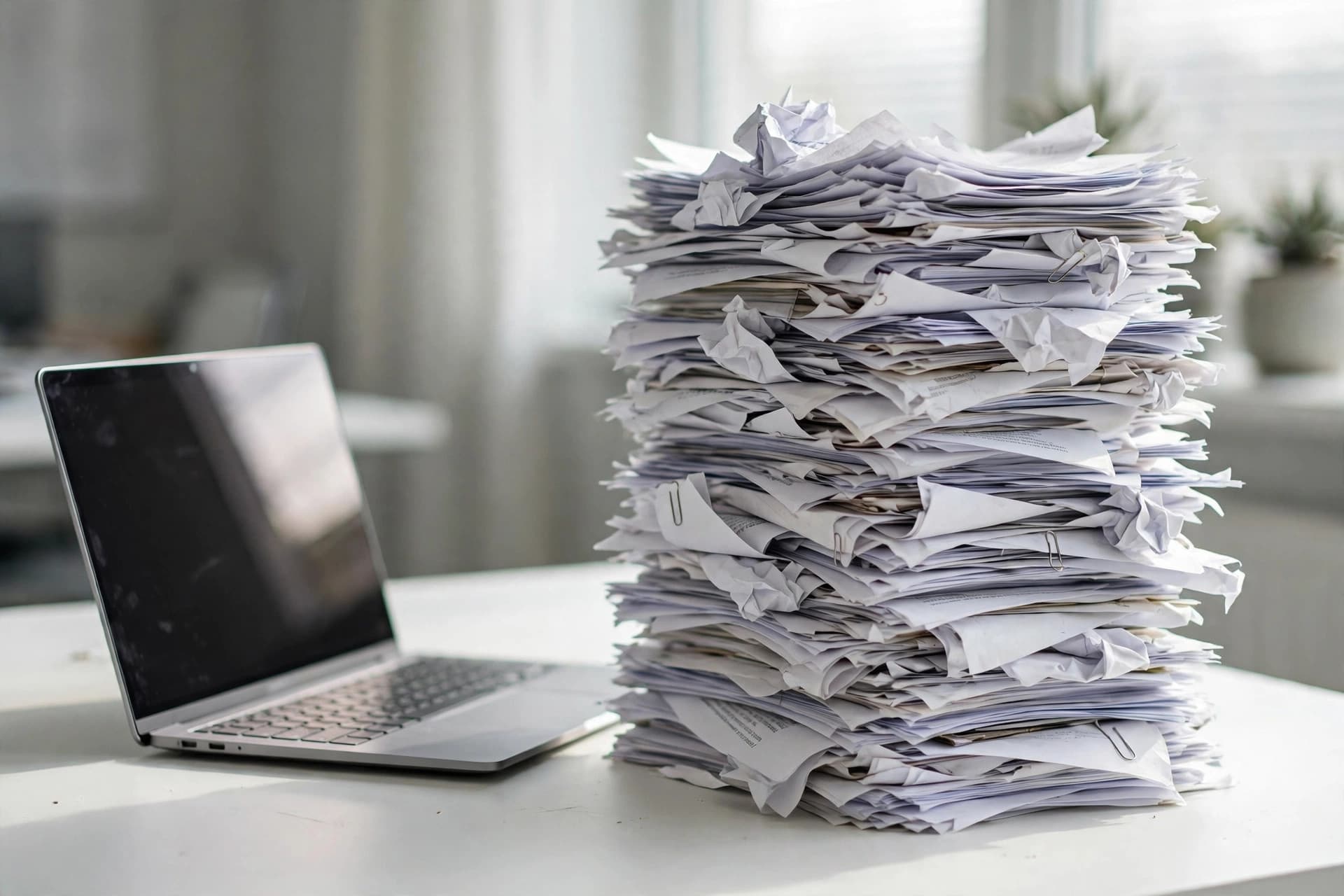
Oversized PDFs are one of life's small recurring annoyances. The job portal rejects your 18 MB portfolio. The email bounces back. The upload form caps at 10 MB. Here's why PDFs get bloated and how to shrink them without wrecking them.
Why your PDF is so big
Nine times out of ten, it's images. Specifically:
- Scans at high resolution. A scanner set to 600 DPI produces beautiful images and enormous files. For documents, you rarely need more than 150-200 DPI.
- Photos embedded at full size. A phone photo dropped into a document can be 4 MB by itself.
- Uncompressed everything. Some PDF creators don't compress image data at all, so a file that should be 2 MB ships at 20 MB.
Text itself is tiny. A 100-page novel as pure text is a few hundred kilobytes. If your PDF is huge, images are the culprit — which is good news, because images are exactly what compression handles best.
How to compress a PDF, step by step
- Drop in your file. Drag it into the browser window. No account, no upload to a server — it processes on your device.
- Pick a compression level. You'll see three presets — Extreme, Recommended, and Less. Start with Recommended.
- Compress and compare. Download the result and open it next to the original. Zoom into any photos or fine print.
- Adjust if needed. Looks identical? You're done. Text still crisp but you need it even smaller? Try Extreme. Photos look soft? Drop back to Less.
That's it. Most documents land in the sweet spot on the first try.
Choosing the right compression level
This is the only decision that matters, and it depends on what's in the file:
- Text-only documents (contracts, forms, reports): compress freely. Text stays perfectly readable at any level — one honest trade-off: compressed pages become images, so the text is no longer selectable or searchable afterward. Keep your original.
- Documents with photos (portfolios, brochures, real estate listings): use Recommended. Photos are already compressed; squeezing harder gives diminishing returns and visible softness.
- Scanned documents: Recommended is usually the sweet spot. Less if the scans need to stay crisp for printing, Extreme if it's just for screen reading.
- Files going to print: be conservative. What looks fine on screen can look rough on paper. When in doubt, compress less.
Common mistakes
Compressing three times hoping for magic. Each pass re-compresses already-compressed images. You get slightly smaller files and noticeably worse quality. One well-chosen pass beats three desperate ones.
Compressing the only copy. Always keep your original. Compression is lossy — you can't get the quality back. Keep the big file archived, send the small one.
Using "strong" on a portfolio. If the whole point of the document is how it looks, don't crush it to fit an email limit. Compress moderately, and if it's still too big, that's what file-sharing links are for.
Forgetting embedded fonts. Some PDFs embed entire font files, adding megabytes. PDFEdit's compressor sidesteps this: it re-renders each page as an image, so font data doesn't bloat the output at all.
What if it's still too big?
Sometimes compression alone isn't enough. A few more levers:
- Split it. If only half the document needs sending, extract those pages into a smaller file.
- Downsample the scans. If you control the source, rescan at 150 DPI instead of 600. The file gets a fraction of the size.
- Convert images first. A PDF made of full-page PNGs can sometimes shrink dramatically by converting pages to JPG at reasonable quality and rebuilding.
How compression actually works (the 30-second version)
You don't need the math, but the intuition helps you pick settings. PDFEdit's compressor does one thing, thoroughly:
- Re-renders every page as an image at the resolution you chose — 220 DPI on Less, 150 DPI on Recommended, 96 DPI on Extreme.
- Re-encodes those page images as JPEGs at a matching quality level, then rebuilds them into a fresh PDF.
Lower resolution plus heavier JPEG compression equals a smaller file. That's the whole trade-off, and it's why the presets are honest about what they do: Extreme makes the smallest files and the softest images.
Two consequences worth knowing upfront. First, compressed pages become flattened images — the text stays readable but is no longer selectable or searchable, so keep your original. Second, if your PDF is already well optimized, the tool will tell you so instead of pretending: it never hands back a file bigger than the one you uploaded.
Compressing for specific destinations
Email attachments. Stay under 10 MB to be safe, under 5 MB to be polite. Recommended compression gets most documents there. If Gmail still complains, the file probably needs splitting, not more squeezing.
Online forms and portals. Government sites and job portals often cap uploads at 2-5 MB and won't tell you until the upload fails. Compress to Recommended or Extreme, and keep a copy of the original in case the portal mangles the file.
Sharing links (Drive, Dropbox). Size barely matters here, so compress lightly. The recipient downloads the full file anyway — no reason to sacrifice quality.
Printing. Be conservative. Screens hide compression sins; paper reveals them. If the document will be printed, use Less compression or none at all.
The bottom line
PDF compression is a solved problem: drop the file in, pick Recommended, check the result. PDFEdit works on a copy and leaves your original untouched, so there's no risk in trying a stronger setting. The file that was bouncing off email limits becomes a well-behaved attachment, and nobody receiving it will know the difference. Just keep your original — compressed pages aren't searchable anymore — don't compress twice, and match the strength to the content. Your inbox — and everyone else's — will thank you.