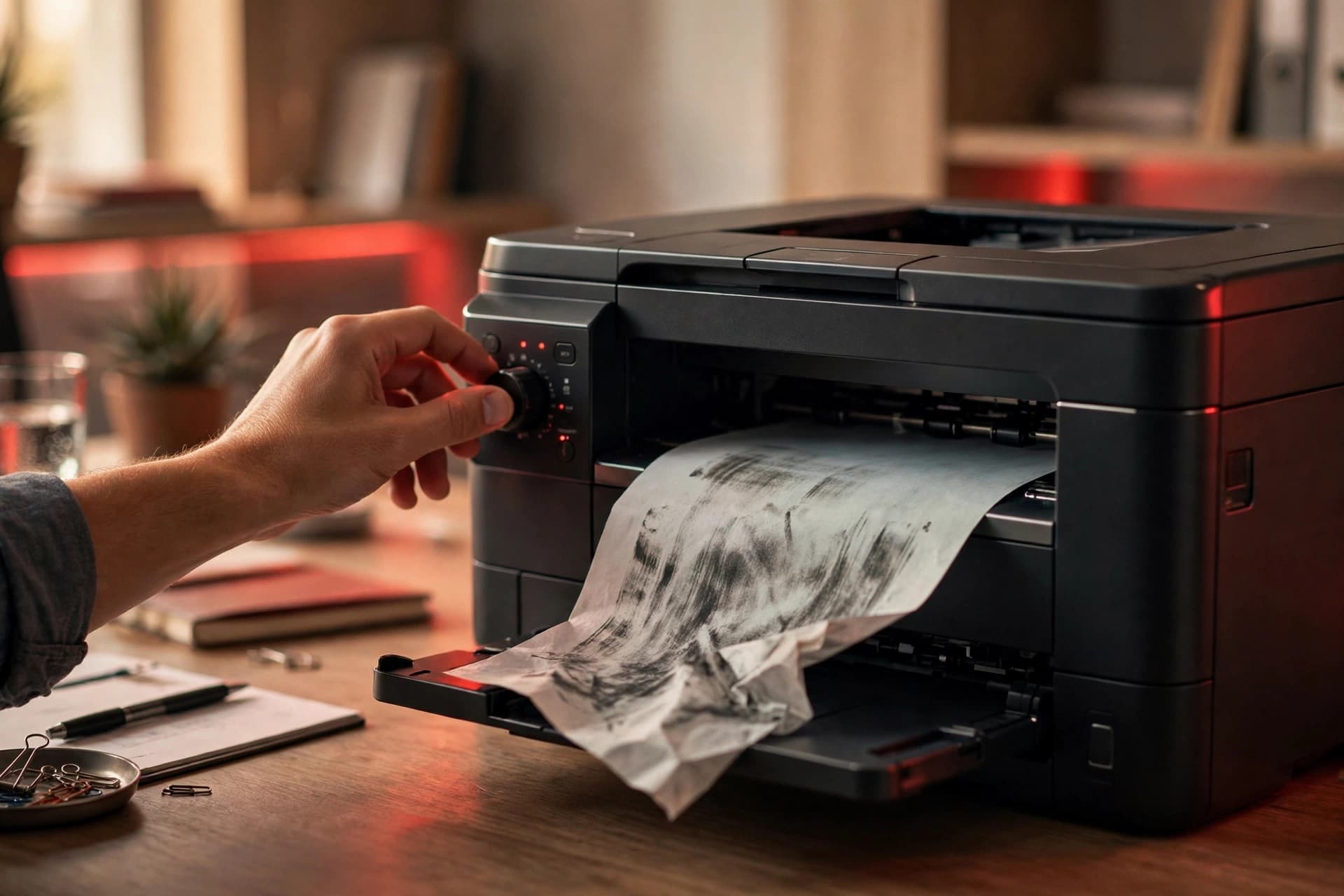
You hit print, walked to the printer, and came back with a document that looks nothing like what's on your screen. Tiny. Cut off at the edges. Blurry like a bad photocopy. Congratulations — you've joined the large and miserable club of people who've watched a PDF ruin perfectly good paper.
The good news: nearly every PDF printing problem comes down to one or two settings in the print dialog. Not the PDF. Not the printer. Just settings. Here's how to diagnose and fix each one.
Problem 1: It prints way too small
Symptom: The document sits in a corner of the page with huge white borders around it, or everything looks miniature.
Cause: Page scaling. When you opened the print dialog, a setting like "Fit" or "Shrink oversized pages" was active. This shrinks your document to fit safely inside the printer's margins — sometimes shrinking it far more than needed.
The fix: In the print dialog, look for a section called "Page Sizing & Handling," "Page Scaling," or similar. Change it to "Actual size." This prints the document at 100%, exactly as designed. Note: exact menu names vary by printer software and operating system, but every major print dialog has this option.
When to keep "Fit": If your document was designed on a larger page size than your paper (say, an A3 poster going onto A4), "Fit" is actually what you want. Otherwise, "Actual size" is your default.
Problem 2: Edges are cut off
Symptom: Text or images run off the edge of the page. The right side of a table is missing. Headings lose their last letter.
Cause: The document's content extends into the printer's unprintable area — a thin border around the page edge that the printer physically cannot mark. Most printers leave roughly a quarter-inch (about 6mm) margin they can't touch.
The fix: In the same page scaling section of the print dialog, choose "Fit" or "Shrink oversized pages." This scales the whole page down just enough to squeeze everything into the printable zone. The reduction is small — usually only a few percent — so nobody will notice.
If it keeps happening: The document may have content placed extremely close to the edge. In that case, cropping a sliver off the margins before printing can help (PDFEdit has a free margin-crop tool for exactly this).
Problem 3: It prints blurry or pixelated
Symptom: Text looks fine but images, logos, or charts print fuzzy. Or everything looks soft, like a low-quality photocopy.
Cause — two possibilities:
- The PDF itself is low-resolution. Many PDFs contain images at screen resolution (around 72 dpi) while good printing needs roughly 300 dpi. Test this: zoom in to 200% or more on screen. If the image looks blurry on screen too, no printer setting will save it — the source quality just isn't there.
- Your print quality is set too low. Many printers default to "Draft," "Fast," or "Normal" mode to save ink and time.
The fix: First check the print dialog for a quality setting — look for "Quality," "Print quality," or similar — and set it to "High," "Best," or the maximum available. If the output is still blurry, zoom in on screen to check whether the source file is the actual problem.
Honest expectation: You can improve a mediocre print with better settings, but you cannot print detail that isn't in the file. If a logo was saved at low resolution, "High quality" mode will just give you a sharper-looking blur.
Problem 4: Blank pages come out of the printer
Symptom: Between your real pages, the printer spits out completely blank sheets. For a 10-page document you get 14 sheets.
Cause: The PDF genuinely contains blank pages — very common in scanned documents, documents exported from Word with section breaks, or forms with intentional spacer pages. Printers faithfully print what they're given, including nothing.
The fix: Two options. Quick: in the print dialog's page range, print only the pages you want (e.g. 1–8 instead of everything). Better: remove the blank pages from the PDF first so you never deal with it again — PDFEdit has a free blank-page remover.
Tip: If the blank pages appear in the middle of the document, check whether they're intentionally there (some booklets use them). Deleting intentionally blank pages can break a booklet's page pairing.
Problem 5: The colors look completely wrong
Symptom: The screen shows a rich blue logo; the printer gives you purple. Skin tones go orange. Everything looks washed out or oddly dark.
Cause: Screens and printers speak different color languages (screens use RGB, printers use CMYK), and translating between them involves judgment calls. Your printer software makes these calls automatically — sometimes badly.
The fix:
- Check the print dialog for color management or color matching options. Choosing "Printer manages colors" versus "Application manages colors" can produce noticeably different results — try the other one if the current output is bad.
- For casual documents (meeting handouts, schoolwork), perfect color matching usually isn't worth chasing. For anything where color accuracy matters — client proofs, branding materials — calibrate your monitor and use your printer's official color profile.
Reality check: Home and office printers simply cannot reproduce the full range of colors your screen shows. Some difference is physics, not a malfunction.
Problem 6: Everything's the wrong size — A4 vs. Letter
Symptom: The document prints but proportions feel off, or the layout is awkwardly shifted with a big margin on one side.
Cause: The classic paper-size mismatch. The PDF was designed for A4 (standard almost everywhere) but your printer is loaded with US Letter (standard in the US and Canada) — or vice versa. A4 is slightly narrower and longer than Letter, so content designed for one fits awkwardly on the other.
The fix: In the print dialog, check the paper size setting matches what's actually in the tray. If they must differ, use "Fit" scaling so the document adapts gracefully. Long-term fix: set your system's default paper size to match what you actually buy.
Problem 7: It prints garbled text instead of the document
Symptom: Instead of your document, the printer produces pages of nonsense characters, strange symbols, or error messages.
Cause: The PDF contains something the printer driver mishandles — embedded fonts, complex vector graphics, or transparency effects. The printer receives instructions it can't interpret and does its best, which isn't good.
The fix: In the print dialog's advanced settings, enable "Print as image." This converts each page to a picture before sending it to the printer, bypassing the font-and-graphics interpretation problem entirely. It's slower and uses more memory, but it's the most reliable fix for garbled output.
If the option is missing: Open the PDF in a different reader (your browser, for instance) and print from there — different software sends different instructions, and one of them usually works.
The pre-print checklist
Run through this before every important print job and you'll avoid nearly every problem above:
- Check paper size — dialog setting matches the tray (A4 vs. Letter).
- Check page scaling — "Actual size" for faithful prints, "Fit" if edges are cut or sizes mismatch.
- Check orientation — portrait vs. landscape matches the document.
- Check quality — "High" or "Best" for anything important, "Draft" only for throwaway proofs.
- Print one page first — page 1 on plain paper, verify it looks right, then commit the full job.
- Count your pages — if the PDF has blank pages, exclude them with a page range.
That fifth step is the one people skip and regret. A single test page costs one sheet. Reprinting a 40-page report costs forty.
When the problem is the PDF itself
Sometimes no print setting fixes it because the file needs work first:
- Wide margins eating into content? Crop them down before printing.
- Blank pages? Remove them from the file.
- Oversized pages? Resize them to your paper size.
- Low-res images? Honest answer: nothing restores lost detail, but re-exporting from the original source at higher quality helps if you still have it.
PDFEdit's free tools handle the first three directly in your browser — no sign-up, files never leave your device. Fix the file once, and every print from it comes out right.