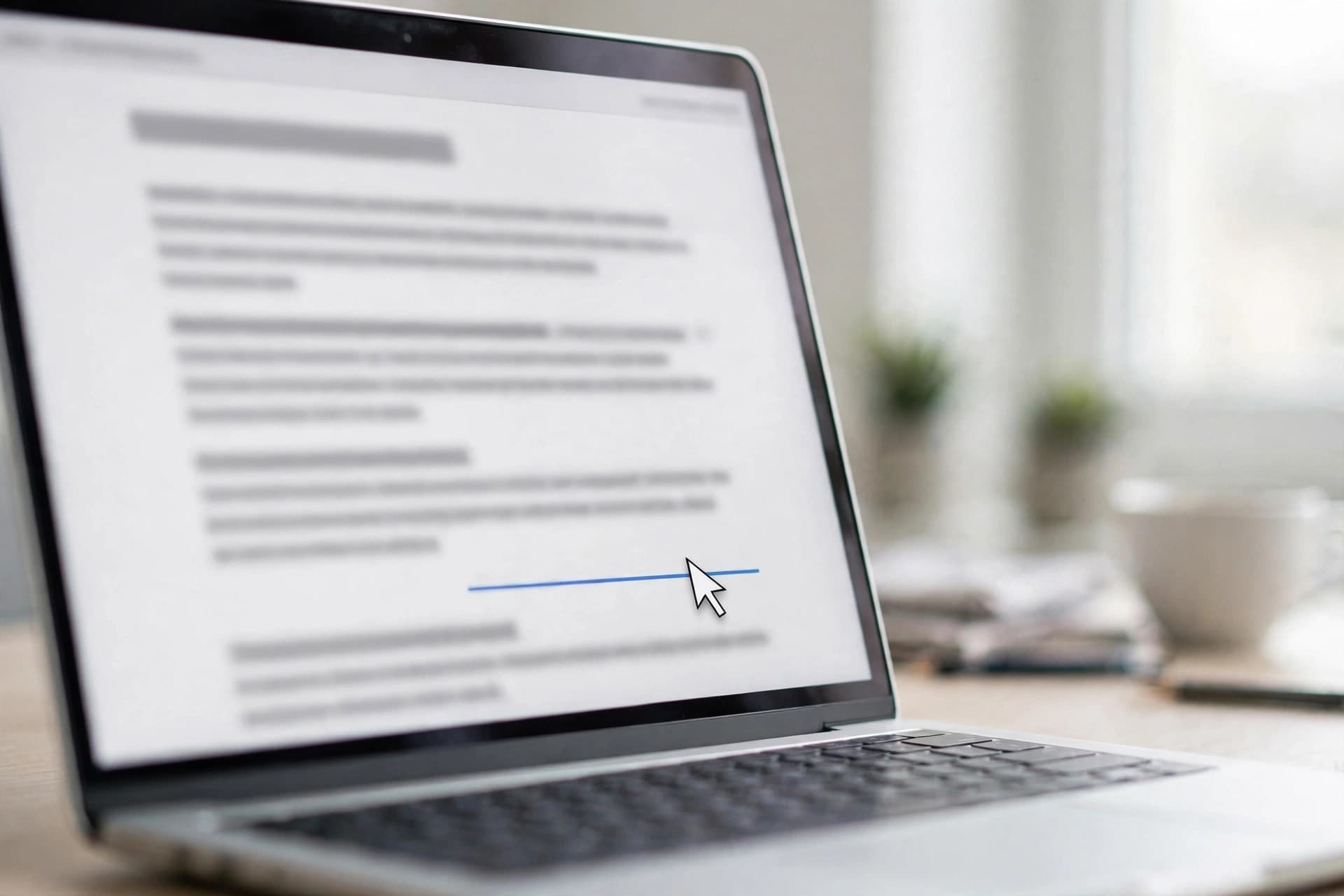
A PDF full of plain-text URLs that nobody can click is a small daily frustration — in a proposal, a CV, or a report, a dead link is a missed connection. The fix is easy once you know that a "link" in a PDF is a real object (a link annotation), not just blue underlined text.
Here are the four reliable methods, from simplest to most powerful.
Method 1: Add links in Word or Google Docs, then export (easiest)
This is the method most people should use. If your PDF starts life as a Word document or Google Doc, add the hyperlinks there — they survive the export.
Step 1: Insert real hyperlinks in your source document
In Word: select the text, press Ctrl+K (Cmd+K on Mac), paste the URL, and confirm. In Google Docs: select text, press Ctrl+K, paste the URL, and click Apply. The key word is real hyperlinks — not just typed-out URLs.
Step 2: Export to PDF with links preserved
In Word, use File → Save As → PDF (not a print-to-PDF driver, which can flatten links). In Google Docs, use File → Download → PDF Document. Both preserve hyperlink annotations.
Step 3: Open the PDF and click every link
Verify each one goes where it should. This 30-second check catches typos in URLs before your readers find them.
Best for: documents you still have the source file for. Limitation: doesn't help if you only have the PDF.
Method 2: Use a desktop PDF editor's link tool (most control)
Editors like Adobe Acrobat, PDF-XChange, or Foxit include a dedicated "Add/Edit Link" tool. It lets you draw a rectangle over any area — text, an image, a button — and attach a URL, a page destination, or a file to it.
Step 1: Open the link tool
In Acrobat it's under Tools → Edit PDF → Link → Add or Edit. Other editors have an equivalent, usually in an "Edit" or "Annotate" menu.
Step 2: Draw the link area
Drag a rectangle over the text or image that should be clickable. Keep the box tight around the content — oversized invisible link boxes are a classic cause of "wrong link" clicks.
Step 3: Set the action
Choose "Open a web page" and paste the full URL (including https://). For internal navigation, choose "Go to a page view" and navigate to the destination page.
Step 4: Style it (optional but kind)
Readers expect links to look like links. Blue, underlined text is the universal signal. If your link area is an image or button, add a tooltip so hovering shows the destination.
Best for: PDFs where you no longer have the source document. Limitation: requires desktop software; most free online tools don't offer true link editing.
Method 3: Build the PDF from HTML (best for generated documents)
If your PDFs are generated — invoices, reports, certificates — generate them from HTML instead. Anchor tags (<a href="...">) in the source HTML become real link annotations in the PDF when rendered by a proper HTML-to-PDF engine.
Step 1: Write links as normal anchors
Use full URLs in your href attributes. Relative links break the moment the PDF leaves your website.
Step 2: Render with a link-preserving engine
Browser print-to-PDF preserves links from the live DOM. Headless Chrome / Puppeteer also preserve them. Some older PDF libraries silently drop links — test yours.
Step 3: Validate the output
Open the generated PDF and click through. Automated pipelines deserve an automated link check.
Best for: developers and anyone generating PDFs in bulk. Limitation: overkill for a one-off edit.
Method 4: Link annotations via annotation tools (quick fixes)
Some online PDF annotators let you add link annotations without a full editor. The workflow is the same as Method 2 — draw a box, attach a URL — just in a browser. Quality varies, so always test the downloaded file.
Why links break (and how to prevent it)
- Plain-text URLs: Typing "https://example.com" into a PDF page creates text, not a link. Some readers auto-detect URLs, but you can't rely on it — especially on mobile.
- Print-to-PDF flattening: Virtual printers rasterize or flatten content; link annotations often don't survive. Always prefer "Export" or "Save As PDF" over printing to PDF.
- Scanned PDFs: A scan is a picture of a page. There are no links because there's no text layer at all. Run OCR first to get selectable text, then add links with Method 2.
- Relative URLs: A link to "/pricing" works on your website but dies in a PDF. Always use absolute URLs with the protocol included.
- Link rot: Links die over time. For important documents, prefer stable URLs and re-check links before each major send.
The 2-minute link audit
Before you share any link-heavy PDF:
- Open it in a plain reader (not the editor you used to add the links).
- Hover over each link — the destination should appear in a tooltip or status bar.
- Click through to confirm each destination loads.
- Check on a phone — tap targets need to be finger-sized, not single-word links buried in dense text.
- If the document might be printed, make sure full URLs appear in the text for anything critical.
Clickable links are one of those details readers never notice when they work — and always notice when they don't. Pick the method that matches where your document came from, test before sending, and your PDFs will behave the way your readers expect.
Sources
- label: "Adobe Support: Create links in PDFs" url: "https://helpx.adobe.com/acrobat/using/links-attachments-pdfs.html"
- label: "PDF Association: Link annotations in the PDF specification" url: "https://www.pdfa.org/resource/iso-32000-pdf/"