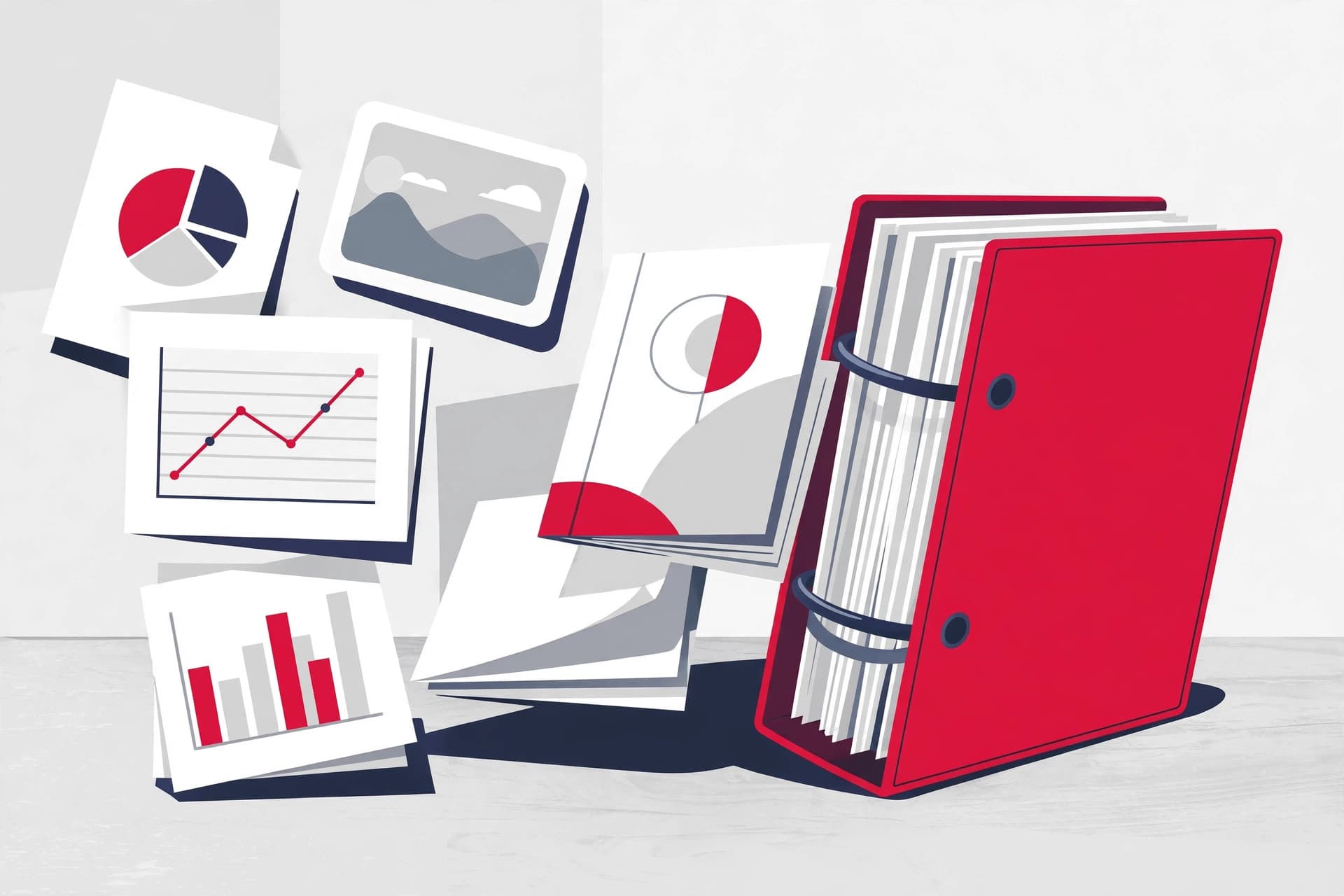
A portfolio that arrives as seven attachments — final_v2.pdf, draft-old.pdf, IMG_2039.png — tells the reader you assembled it in a panic. The same documents packaged as one file with a cover page, a sensible order, and page numbers tell a different story: this person runs a tight operation.
That's all a PDF portfolio is. Not a special format. Just a collection of your documents, combined into one polished PDF that reads in order from front to back. Freelancers use them for proposals and case studies. Job seekers use them for applications with work samples. Agencies use them for capability decks. The method below takes about twenty minutes and uses nothing but free browser tools.
The honest options
There are two ways to "make a PDF portfolio," and they aren't the same thing:
- Adobe Acrobat's PDF Portfolio: a dedicated feature that keeps each file inside an interactive container with its own navigation. Nice, but it requires a paid Acrobat subscription, and the container doesn't always open cleanly outside Adobe software.
- One merged PDF: every document becomes pages of a single continuous file with a cover page at the front. This is the approach in this guide. It opens on every device, prints properly, and works with every PDF tool on earth.
For nearly every real-world purpose — a job application, a client proposal, a submission package — the single merged file is the better choice. Simpler to send, simpler to open, simpler to print.
Before you merge: plan the order
A portfolio reads like a short book. Draft the table of contents before touching any tool:
- Cover page — your name or company, the portfolio title, the date. One page, no clutter.
- The strongest piece first. Whoever opens this may read ten pages, not sixty. Put the best work where attention is highest.
- Supporting material in the middle — reports, invoices, case studies, whatever backs up your claim.
- Contact details last — one page with how to reach you. Some readers skip straight to the end.
Write this list down. It takes two minutes and prevents the classic mistake: a portfolio in the order the files happened to be in your Downloads folder.
Step 1: Get everything into PDF format
Merging only works cleanly when every input is already a PDF. Convert stragglers first:
- Word or DOCX files → a Word to PDF converter.
- Images, scans, screenshots → JPG to PDF. Scan at 300 DPI if you want the printed result to look sharp.
- Spreadsheets → print or export to PDF from Excel or Google Sheets.
Check each converted file as you go. A blurry scan or a Word export with broken tables will only be harder to fix after the merge.
Step 2: Build a one-page cover
The cover is the single highest-leverage page in the portfolio. Keep it brutally simple: a title, your name or company, the date, and contact info. No stock photos, no gradients, no "In today's competitive landscape…" tagline.
Make it in whatever editor you're comfortable with — Word, Google Docs, Canva — and export it as PDF. If the cover includes a logo or photo, make sure those assets are already high resolution; a fuzzy logo on page one ruins the impression for the other fifty-nine pages.
Step 3: Merge everything in order
Open Merge PDF and drop in your files starting with the cover page, then the rest in the order from your plan. The tool processes files in your browser, so nothing uploads to a server while you work.
This is the step where your planning pays off. Drag to reorder until the sequence matches your list. A portfolio that starts with the cover, opens with the strongest work, and ends with contact details is doing its job.
Step 4: Clean up the page sequence
Merged documents almost always have stowaways: the blank page Word added at the end, the duplicate scan, the "notes" page you meant to remove. Open Organize PDF, flip through the page thumbnails, and delete or reorder pages until the whole thing flows.
This is also where mixed page sizes show up — a US Letter contract next to an A4 report next to a slide deck. Minor differences are fine; if a page is drastically off, convert that document to match the others' size before merging rather than after.
Step 5: Add page numbers
Page numbers are what separate a portfolio from a pile of pages. They let your reader say "see page 12" in a call instead of describing which document they mean. Use the Add Page Numbers tool, pick a corner, and run it across the whole file.
One tip: add page numbers after merging and cleanup, never before. Numbers added to individual files first will restart at 1 for each document.
Step 6: Compress before you send
A portfolio with high-res images can easily hit 40 MB — too big for most email inboxes, which typically reject attachments over 10–25 MB. Run the merged file through Compress PDF and pick a quality level that keeps text sharp. Then send the compressed file to yourself and open it on your phone: if the images look fine at phone size, they're fine for a screen reader. If the portfolio will be printed, keep a separate uncompressed copy for the printer.
The final checklist
Before you send, run through this in sixty seconds:
- Cover page has your name, the portfolio title, and the date — no typos.
- Documents are in a deliberate order, strongest first.
- No blank pages, duplicates, or leftover draft pages.
- Page numbers run continuously from front to back.
- File size is email-friendly (under ~10 MB for inbox delivery).
- The filename is professional:
Amina-Rahman-Design-Portfolio-2026.pdf, notmerged_final(3).pdf. - You opened the final file on a phone and it reads well.
That last item matters more than everything else. Most portfolios are opened on phones now. If the cover looks sharp and the pages are easy to scroll through on a small screen, you're done.
Going further
Once you have one portfolio working, it becomes a template. Swap in new work samples, update the date, re-run the merge-compress steps, and you have next quarter's version. Keep the source documents in a folder alongside the final PDF — future you will be grateful when a client asks for "the portfolio, but with the new project included."
For sensitive portfolios — fee schedules, contracts, unreleased work — consider adding a password with Protect PDF before sending. It won't stop a determined attacker, but it keeps the file from being casually forwarded to people who shouldn't see it.