I gave AI a full week with my PDFs. Not a marketing demo week — a real one, with the kind of documents that pile up in everyone's download folder: a 40-page insurance policy I never read, a stack of invoices, a scanned contract from 2019, a half-finished CV, and a pile of tax forms.
The pitch everywhere right now is that AI can "edit your PDFs." I wanted to know what that actually means in 2026 — what genuinely works, what kind of works, and what quietly doesn't. Here's the honest version.
What AI is genuinely great at: understanding
The first surprise was how good AI has become at reading documents. I dropped in that 40-page insurance policy and asked, "What's my deductible and what isn't covered?" It answered both, in plain language, pointing at the relevant sections. That's a real superpower — the kind of task that used to mean an hour of squinting at fine print.
Summarization is the standout use case. Long reports, terms of service, meeting notes saved as PDFs — AI condenses them fast and usually well. It's not perfect; I'd never let it summarize a contract without spot-checking the original. But for getting the gist of a 60-page document before a meeting, it's genuinely useful.
Data extraction surprised me too. I fed it a dozen invoices and asked for a table of dates, vendors, and totals. It pulled the numbers out cleanly and formatted them into a spreadsheet-ready table. For anyone doing expense reports, this alone is worth the price of admission — and most of these tools are free.
Where AI is decent but needs supervision: writing and filling
The second half of the week, I tried having AI write into my documents. Drafting a cover letter as a PDF-ready text block? Great. Suggesting wording for a form field? Great. Pulling my address and details from an old invoice to pre-fill a new form? Clever — and mostly right.
But "mostly right" is the operative phrase. AI doesn't reliably know where a form field starts and ends, or how a flattened form is structured. More than once it produced perfect text that I then had to place manually anyway. It also confidently filled one date field with the wrong year, which I only caught because I happened to look. AI is a fast, tireless assistant for document text — not a careful one. Treat everything it writes like a draft from an intern: promising, but read it before it goes out.
What AI still can't do: actual precise edits
Here's where the marketing pitch falls apart. When people say "edit my PDF," they usually mean concrete things: delete page 7, move this paragraph, merge these three files, shrink this to fit an email, sign it, rotate the upside-down scan. I asked AI tools to do these things, and the results ranged from "sort of" to "no."
Layout edits are the big gap. A PDF is a fixed-layout format — every letter sits at exact coordinates. AI language models don't think in coordinates. They can't nudge a text box two millimeters left or reflow a page around an inserted paragraph. Asking AI to "move the logo down a bit" is like asking a novelist to weld. Wrong tool entirely.
Merging and splitting remain a purpose-built tool's job. AI can tell you which pages to keep, but the actual file surgery — combining, reordering, deleting pages — needs software that manipulates the file structure directly.
Compression is another one. A 25 MB scanned contract needs its images recompressed and its structure optimized. AI can't do that; it doesn't operate on the file's internals at all.
The redaction problem nobody warns you about
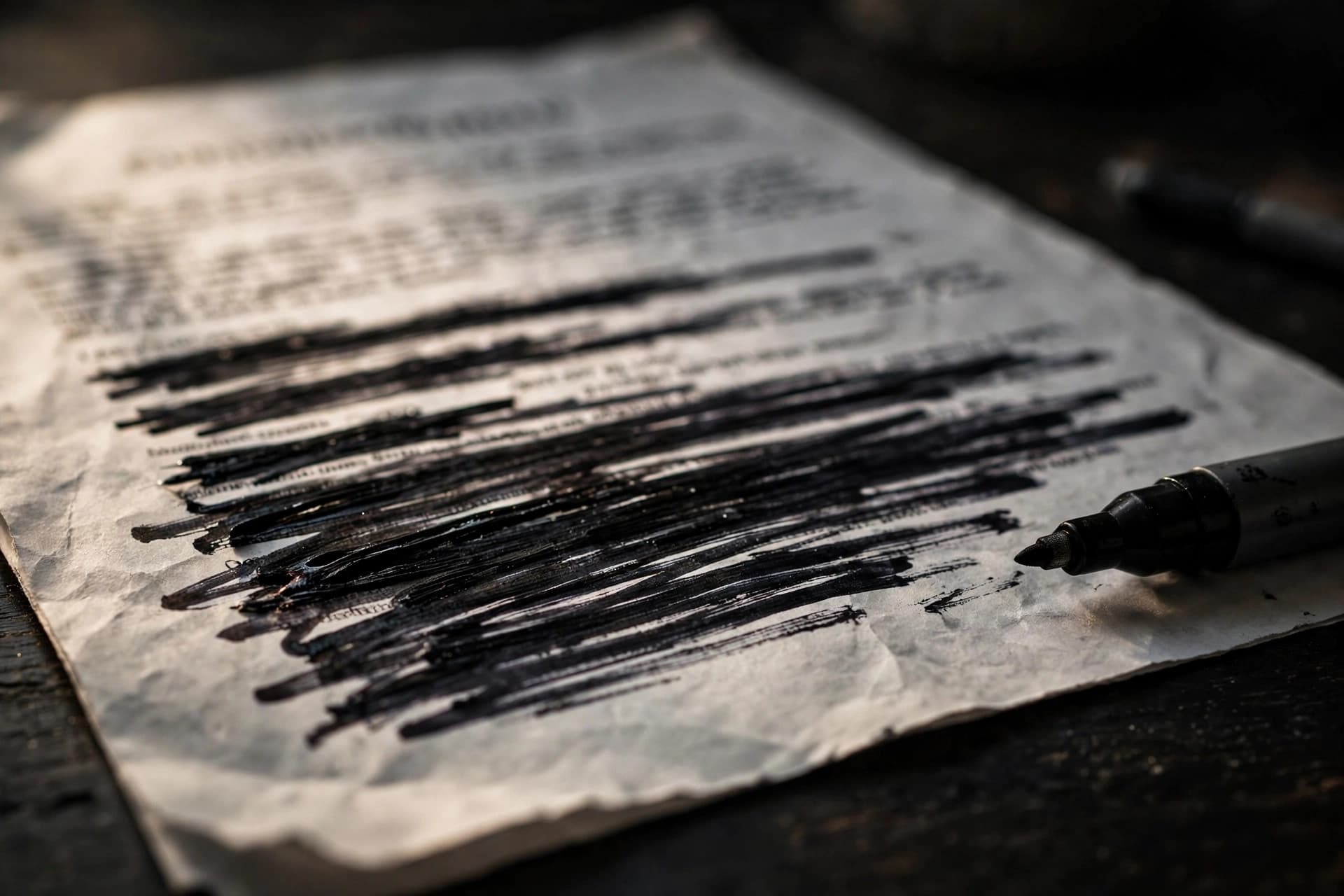
This one matters enough to call out separately. I asked an AI tool to "redact the account numbers" from a bank statement. It found the numbers and described black boxes over them. Looks done, right?
No. Drawing a black rectangle over text in a PDF does not remove the text. The characters are still in the file, underneath the box — anyone can select, copy, and paste them out. I verified this in about ten seconds. This is one of the most common PDF mistakes in existence, and AI happily walks you into it because it doesn't distinguish between covering content and removing it.
Real redaction means deleting the underlying text and images from the file itself. That's a byte-level operation, and it's the kind of thing only a dedicated redaction tool does. If you're handling legal, medical, or financial documents, this distinction is the difference between "redacted" and "leaked with extra steps."
The privacy question you should ask first
Before uploading anything to an AI service, check one thing: what happens to your file. Many AI platforms use uploaded content to improve their models unless you explicitly opt out. That's a fine trade for a restaurant menu, and a terrible one for a medical record or an unreleased contract.
This is the quiet advantage of browser-based PDF tools. When a tool runs entirely in your browser — no upload, no server — your document never leaves your device. There's nothing to leak, nothing to train on, nothing to subpoena from a server. For sensitive documents, that architecture beats any privacy policy.
So what should you actually use?
After a week, my honest take is that it's not AI or PDF tools — it's both, for different jobs:
- Understanding a document — summarize it, ask questions, extract data → AI is excellent.
- Drafting text for a document — cover letters, form answers, wording → AI is a great first draft.
- Changing the document itself — merge, split, compress, rotate, sign, redact, reorder pages → purpose-built PDF tools, no contest.
- Sensitive documents — anything confidential → prefer tools that run in your browser and never upload your file.
The mistake is expecting one tool to do everything. AI is a brilliant reader and a decent writer. It is not an editor, a surgeon, or a shredder.
A workflow that actually works
By day five I'd settled into a rhythm that I still use now. When a document lands in my inbox, AI gets the first pass: summarize it, pull out the dates and numbers, flag anything unusual. Then I do the real work in a proper PDF tool — merging the attachments, compressing the scan for email, signing where I need to sign.
The division of labor is the insight. AI is the fastest reader you've ever had. Purpose-built tools are the steadiest hands. Together they cover the whole job; apart, each leaves you reaching for the other.
One practical tip: convert or extract text from your PDF before handing it to AI. A clean text extraction gives the AI far better material to work with than a raw scanned image, and the answers get noticeably sharper.
The bottom line
AI exceeded my expectations at understanding documents and disappointed me at changing them — and honestly, that's fine. Knowing the boundary is what makes the tools useful instead of frustrating. Let AI do the reading and the drafting. Then open a real PDF tool for the actual edits: merge the files, compress the scan, sign the form, redact the account numbers properly.
All of those precise edits are free in your browser at PDFEdit — merge, compress, sign, redact, and more, no sign-up, no uploads. Use the AI for what it's good at, and use the right tool for the rest.