A contract comes back from the other side with the note "just a few small tweaks." You open both versions. Forty pages. The tweaks could be anywhere — a changed number in clause 7, a deleted sentence on page 31, a date quietly moved. Reading both documents end to end is how people miss things. There are better ways.
The pro option: Acrobat's Compare Files
Adobe Acrobat (the paid Pro version, not the free Reader) has a dedicated comparison tool, and for heavy revision work it is the standard. The workflow is simple: open Acrobat, go to Tools > Compare Files, select the older version on the left and the newer version on the right, and click Compare.
Acrobat produces a results summary — how many changes it found, broken into replaced, inserted, and deleted — and a new document with every change highlighted. You can walk through them with "Go to First Change," flipping between a side-by-side view (old on the left, new on the right) and a single-page view. Filters let you narrow the comparison to text, images, annotations, or formatting, so you can ignore cosmetic noise when you only care about wording, or vice versa.
Two honest caveats. First, it needs a paid Acrobat subscription — Reader cannot do this. Second, it compares text best; scanned documents should be OCRed first, otherwise the tool has no text to work with. For law firms, procurement teams, and anyone reviewing contracts weekly, the subscription pays for itself in the first month. For everyone else, the free methods below get the job done.
The free method that actually works: extract and diff
Most differences that matter are text. So the most reliable free approach is to stop comparing PDFs and start comparing text:
- Extract the text from both PDFs. PDFEdit's PDF-to-text tool pulls the readable text out of each file in your browser — no uploads, no account.
- Paste both into a diff tool. Free online text comparators (or the diff view in any code editor, or even Word's "Compare Documents" feature) will show you every added, removed, and changed line, highlighted.
- Read the diff, not the documents. A clean diff of forty pages takes five minutes to review. Two full read-throughs take an hour and still miss things.
This method catches every wording change, moved paragraph, and deleted clause. What it will not catch: swapped images, changed logos, reformatted layouts, or altered signatures. For those, you need your eyes on the pages — see the visual method below.
The manual method: side by side, done properly
When you need to see layout and images too, open both PDFs and view them simultaneously. On Windows, snap one window left and one right (Win + arrow keys). On Mac, use Split View in full screen, or just tile two windows. Then go page by page.
The trick that makes this bearable: don't read. Scroll both documents in sync and watch for visual rhythm breaks — a paragraph that ends one line earlier, a page break that moved, a heading that changed size. Your peripheral vision is excellent at spotting "something moved here"; only then do you stop and read closely. For a ten-page document this takes about fifteen minutes. For a hundred pages, use the extract-and-diff method first to find the changed pages, then eyeball only those.
Handling the hard cases
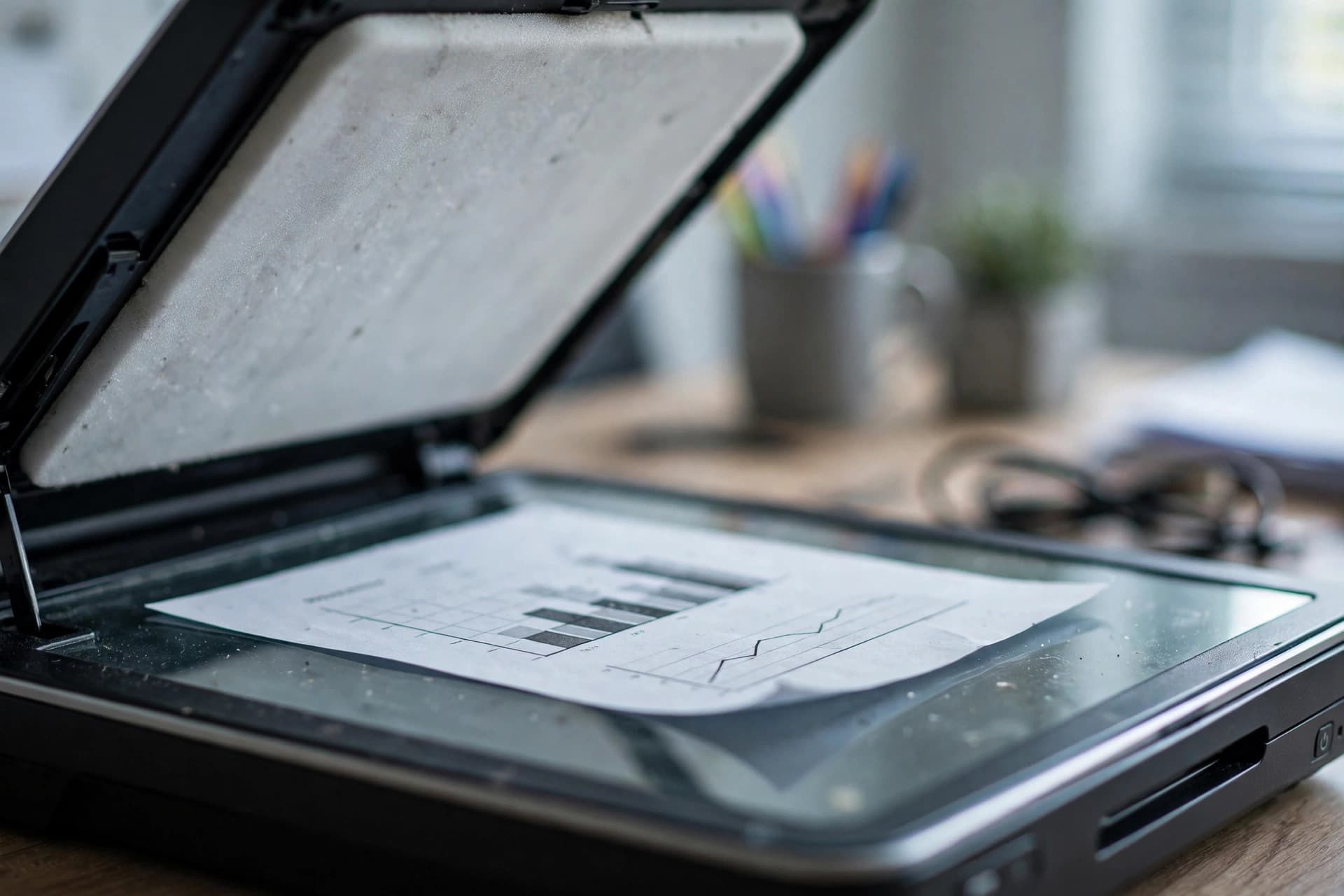
Scanned PDFs. A scan is a photograph of text — there is nothing to extract or compare until you OCR it. Run both files through an OCR tool first, then extract text and diff. Note that OCR introduces its own small errors, so treat single-character differences (an "l" read as a "1") with suspicion unless the surrounding context confirms a real change.
Different page counts. When pages were inserted or deleted, everything after the change shifts. A naive page-to-page comparison becomes misleading from that point on. Handle it in two passes: first identify which pages were added or removed (the results summary in Acrobat, or obvious length differences in extracted text), then compare the remaining matched sections separately.
"Compare text only" vs everything. Acrobat lets you ignore images, annotations, headers and footers, and formatting. Use these filters deliberately. Reviewing a contract's wording? Compare text only, and formatting noise disappears. Reviewing a designed brochure? You need the visual pass, because a text diff will tell you nothing changed while the headline font and the product photo did.
A workflow that won't let you down
For a typical "they sent a revised version" situation, this is the sequence that catches everything without wasting your afternoon:
- Extract text from both PDFs and diff it. Review every flagged change — this is your text audit.
- If anything visual could matter (logos, signatures, charts, layout), open both side by side and scan just the pages the diff flagged, plus the first and last page.
- If either file is a scan, OCR both before step 1.
- Only sign or approve after the comparison, never before.
The note saying "just a few small tweaks" is sometimes true and sometimes not. Now you can check in minutes instead of trusting it.