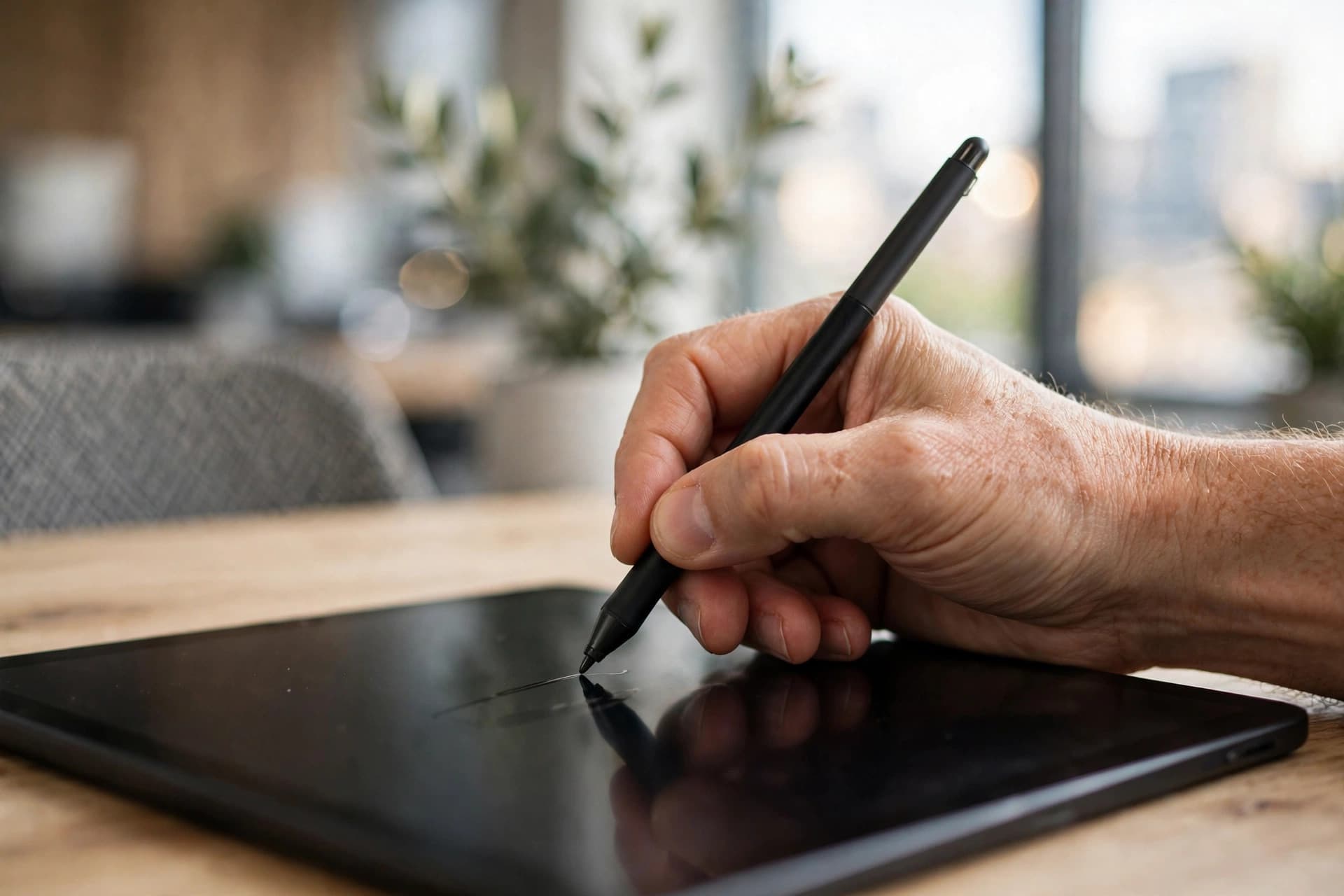
The short answer: open the PDF in a free online signing tool, draw or upload your signature, drag it onto the signature line, and download. It takes under a minute, it's legally valid for the vast majority of documents, and the result looks far better than a print-sign-scan job.
Every week, millions of people still print a PDF, sign it with a pen, photograph it with their phone, and email the blurry result. There's a better way, and it's been legally fine for over twenty years.
Are electronic signatures actually legal?
Yes — for almost everything. In the United States, the ESIGN Act (2000) gives electronic signatures the same legal weight as handwritten ones. The EU's eIDAS regulation does the same across Europe, and most other countries have equivalent laws.
The exceptions are narrow: wills, some real estate transfers, and certain court filings in some jurisdictions still want wet ink. Your employment contract, NDA, invoice approval, rental agreement, or school form? An electronic signature is fine.
One honest caveat: I'm not a lawyer, and for high-stakes documents it's worth checking your local rules. But for everyday paperwork, this is settled law.
Electronic signature vs. digital signature
People mix these up, and the distinction matters:
- Electronic signature: any mark that shows you intended to sign. A drawn squiggle, a typed name in a script font, a clicked "I agree" button. This covers nearly all daily use.
- Digital signature: an electronic signature plus cryptography — it mathematically proves who signed and detects any tampering afterward. Banks and governments use these for high-assurance documents.
For signing a contract, approving an invoice, or accepting an offer letter, a simple electronic signature is what everyone expects. Don't pay for cryptographic signing infrastructure to accept a freelance gig.
How to sign a PDF, step by step
- Open your PDF. Drag it into the browser. No sign-up, and the file stays on your device.
- Create your signature. Three options: draw it with your mouse or finger, type your name in a handwriting-style script, or upload a photo of your real signature. Drawn signatures look the most natural.
- Place it. Drag the signature onto the signature line and resize it to fit. If the document asks for a date next to the signature, include it when you type your name (e.g. "Dawood Shah · 23 Sep 2026") — the tool places one signature image per download, so anything you want beside it should be part of the image.
- Download. Save the signed PDF. It's crisp, clean, and ready to send.
Need to sign in more than one place? The tool places one signature per pass on the page you're viewing. For multiple signature spots, sign the first spot, download, then re-upload the signed file and place the next signature — repeat until every spot is covered. Each pass takes under a minute.
One privacy note: your signature isn't saved anywhere — it exists only in your browser session while the tab is open. That's also what keeps the tool private.
Tips for a signature that looks right
Draw it big, then shrink it. Drawing small with a mouse produces a cramped scribble. Draw large on a trackpad or touchscreen, then scale it down to fit the line — the result looks much more like your real signature.
Match the ink color. Most signatures are dark blue or black. A bright blue cartoon signature on a formal contract looks off. Keep it simple.
Mind the line. Place the signature so it sits on the signature line, not floating above it. Zoom in to position it precisely — a signature hovering half a centimeter above the line is the telltale sign of a digital job done carelessly.
Don't forget the date. Many signature blocks want a date beside the signature. Add it as text in a matching font size so it doesn't look pasted on.
Common mistakes
Printing, signing, and scanning. This is the big one. The result is crooked, gray, and unprofessional — and completely unnecessary. Sign digitally and the document stays pixel-perfect.
Signing the wrong version. Read the document before you sign it. Once you've signed and sent it, "I didn't read page 4" is not a great position.
Using a typed name where a drawn signature is expected. Some formal documents specifically want something that looks handwritten. A typed name in a script font is legally fine but can look lazy on a contract. When in doubt, draw it.
Emailing sensitive signed documents insecurely. The signature isn't the weak link — the email is. For sensitive contracts, consider password-protecting the PDF before sending.
Signing on your phone
This works better than you'd expect. Open PDFEdit's signing tool in your phone's browser, open the PDF, and draw your signature with your finger or a stylus. Touchscreens are actually better for this than a mouse — your finger-drawn signature looks more like the real thing. Handy for signing that rental agreement from the back of a taxi.
When someone sends YOU a document to sign
The other side of the process deserves a mention, because it happens constantly: a PDF lands in your inbox with "please sign and return."
Don't print it. Open it in the signing tool, add your signature (with the date typed in if the document asks for one), save, and reply with the signed file attached. The whole round trip takes two minutes. If the document needs signatures in several places, do one spot per pass — sign, download, re-upload, and place the next — so you don't miss one. There's nothing more annoying than a document bouncing back because page 6 is missing your signature.
One more thing: rename the file before sending it back. "Contract-signed.pdf" tells the recipient exactly what they're opening. "Contract(1).pdf" does not.
The bottom line
Electronic signatures are legal, fast, and produce cleaner documents than the print-sign-scan ritual. Draw your signature once, save it, and every future document takes thirty seconds. The only things to remember: read before you sign, keep the file on your device with a trustworthy tool, and never go back to photographing paper.