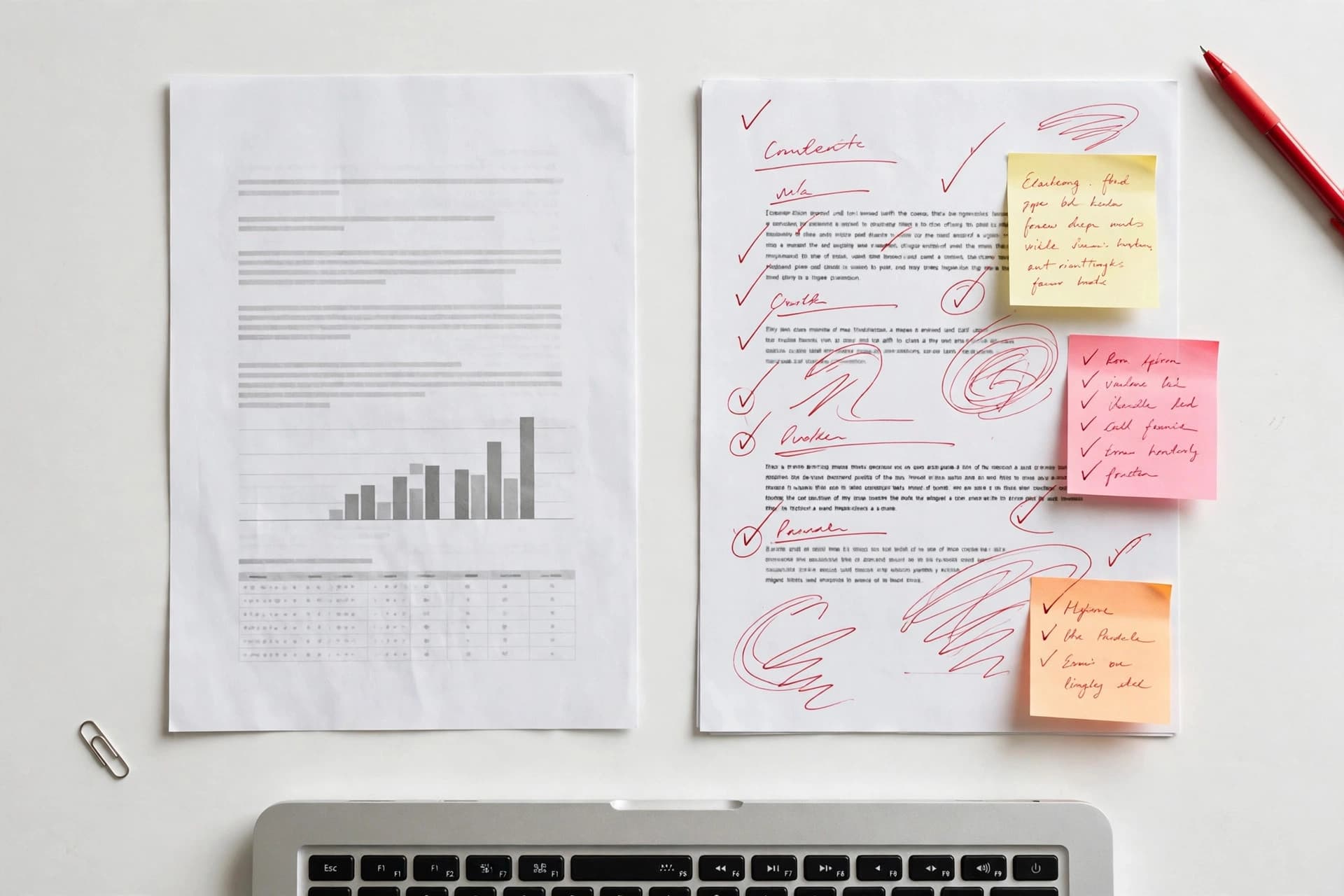
The short answer: upload your PDF to a PDF-to-Word converter, download the DOCX, and open it in Word or Google Docs. You get the document's text as clean, editable paragraphs with page breaks preserved — ideal when you need the words, not the layout.
Here's what nobody tells you upfront: a PDF was never meant to be edited. It was designed as a digital printout — a format that looks identical on every screen and printer. Word documents are the opposite: living files that reflow when you type. Converting between the two is translation work. PDFEdit's converter is honest about the trade: it extracts the text faithfully and skips the rest — no fonts, no tables, no images. If that's what you need, it's the fastest path. If you need the layout too, keep the PDF.
Why formatting doesn't carry over (and when that doesn't matter)
PDFEdit's converter extracts text — paragraphs and page breaks — and leaves everything else behind. Three things to know:
Formatting. Bold, italics, font sizes, and colors don't survive. You get plain paragraphs in Word's default style, which is actually convenient: apply your own styles in seconds instead of fighting inherited ones.
Scanned pages. If your "PDF" is really a stack of scanned images, there's no text for the converter to grab. Run it through OCR first to extract the text, then work with that.
Complex layouts. Multi-column articles and tables come out as sequential plain paragraphs — the words are all there, in reading order as best as the converter can determine, but the grid is gone. For grabbing the content, that's fine. For reproducing the design, it isn't.
If you need the words — to quote, to revise, to translate — this is the fastest route. If you need the layout, don't convert: edit the PDF directly instead.
The method that actually works
Step 1: Check what kind of PDF you have
Open the PDF and try to highlight a sentence with your cursor. If you can select the text, it's a real text-based PDF — you're in good shape. If the whole page selects as one big image, or nothing selects at all, it's a scan. Scanned? Run it through an OCR tool first, then convert.
Step 2: Convert it
Open PDFEdit's PDF to Word tool, drop in your file, and download the DOCX. It runs entirely in your browser — no account, no upload. That matters more than people realize when the document is a contract, a tax form, or anything with personal details in it.
Step 3: Style it your way
The DOCX arrives as clean, unformatted paragraphs with page breaks where the PDF had them. Apply Word's built-in styles — Heading 1, Normal, lists — and the document is yours. Starting from clean text is faster than stripping someone else's mangled formatting.
Common mistakes
Converting a scanned PDF and expecting editable text. Covered above, but it bears repeating because it's the number one support question we hear: a scanned PDF has no text to extract. Run OCR first and work with the extracted text.
Expecting the layout to survive. This converter gives you the words, not the design. If you need tables, images, and exact formatting in Word, no text-extraction tool will do — that's a job for full layout-reconstruction software, not a free browser converter.
Copy-pasting from the PDF into Word instead of converting. We've all done it at midnight before a deadline. You get a hard line break at the end of every line and paragraphs in chaos. A proper extraction takes the same thirty seconds and gives you clean paragraphs with real page breaks.
Emailing the converted file without checking the page count. A twelve-page PDF that becomes a nineteen-page DOCX has a paragraph-detection quirk somewhere. Glance at the page count before you hit send.
When the document is tricky
Tables are the classic troublemaker — and this is where honesty matters: this converter flattens tables into plain paragraphs. The cell text survives, in reading order, but the grid doesn't. If you need a working table in Word, you'll rebuild it from the extracted text, which is still far faster than retyping.
Two-column layouts — newsletters, research papers, magazines — come out as sequential paragraphs. If the text reads in a strange order, that's why: the converter reads top-to-bottom, and columns get interleaved. For grabbing quotes or revising the prose, it's fine. For reproducing the layout, it isn't.
Forms are a special case: if the PDF is a form you need to fill in rather than rewrite, don't convert it at all. Fill it out directly in your browser with a PDF editor instead — converting a form to Word gives you the labels as plain text with no fields to type into.
And if you ever need to go the other direction, the Word to PDF trip preserves your text formatting (fonts, sizes, colors, bold/italic, lists) — though images, tables, and headers are skipped there too. Going PDF → Word → PDF repeatedly is where quality goes to die, so try to keep your edits in one format.
What about Google Docs?
Google Docs can open a PDF directly (File > Open > upload), and it performs its own conversion on the way in. For simple documents it's decent. If all you need is the text, PDFEdit's converter gives you a clean DOCX starting point — convert first, then upload the DOCX to Docs. Either way, apply proper heading styles once it's in Docs; plain extracted text plus real styles beats mangled formatting every time.
The bottom line: PDF to Word conversion works well when you match the method to the document. Text-based PDF and you need the words? You'll be done in two minutes. Scanned pages? Extract the text with OCR first. Design-heavy brochure you need to reproduce exactly? Don't convert — that's not what this tool is for. Know which one you're holding before you start, and you'll never be surprised.