The short answer: open PDFEdit's metadata editor, delete everything in the title, author, subject, keywords, creator, and producer fields, and save. Then check the deeper hiding spots below — metadata is only the first layer.
What's actually hiding in your PDF
Open any PDF's properties (File → Properties in most readers) and prepare to be surprised. Typical finds:
- Author names — often the Windows login of whoever exported it, three jobs ago.
- Company/organization — inherited from the Office license, not from you.
- Creator and producer — the exact software and version ("Microsoft Word 2016", "Acrobat Distiller 9.0"). Harmless usually, but it timestamps your toolchain.
- Creation and modification dates — when the file was really made, regardless of what the content claims.
- Template paths — occasionally the full file path from the author's machine, folder names and all.
- Hidden text layers — OCR text under scans, which can contain words that were later covered up visually.
- Tracked-change ghosts — PDFs exported from Word can carry remnants of the editing history: deleted paragraphs, comment authors, revision metadata.
None of this shows on the page. All of it travels with the file.
The privacy scrub: four layers
Layer 1 — Clear the metadata. The metadata editor: empty every field, save. This handles the ID card — author, company, software trail.
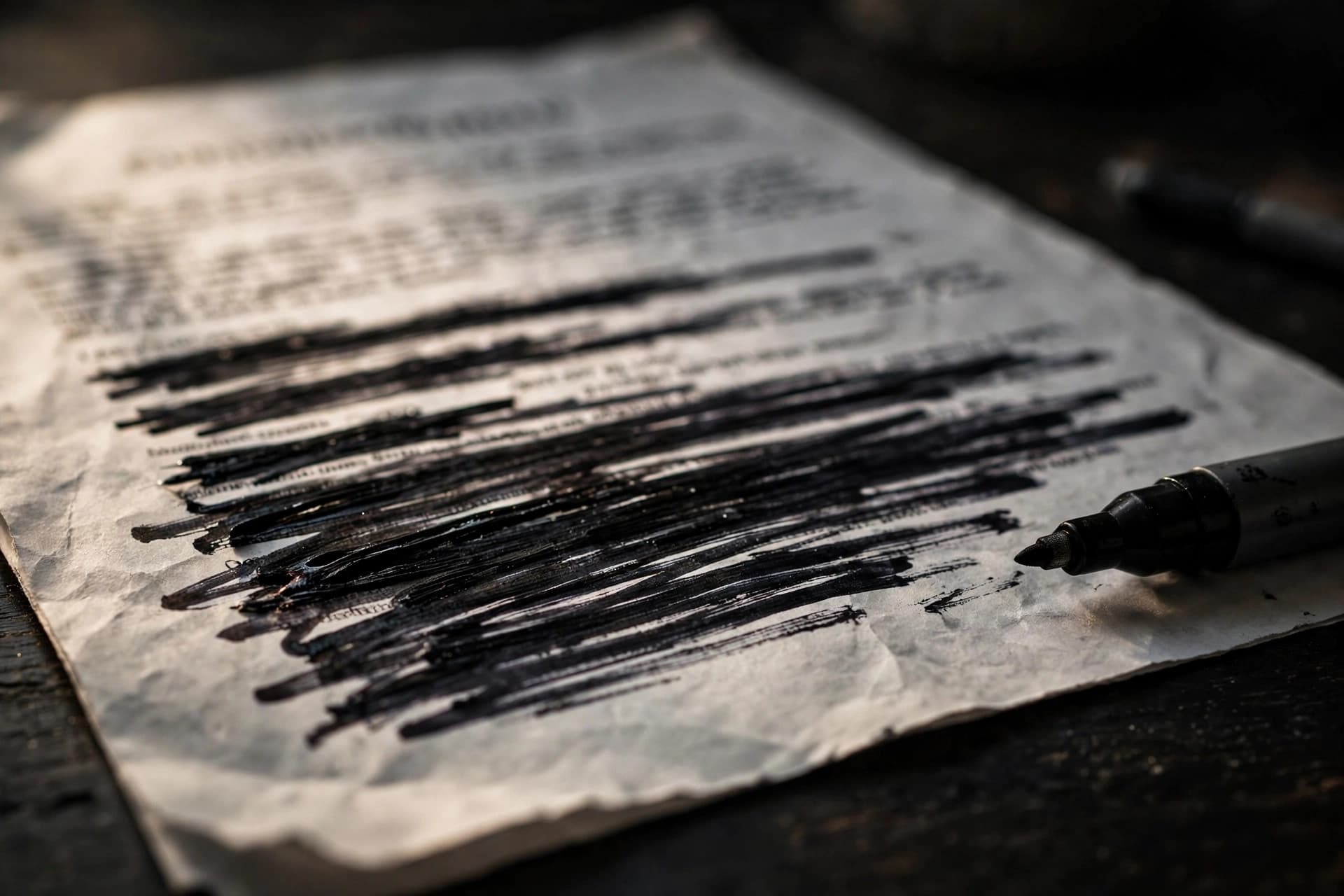
Layer 2 — Kill the hidden text. If the PDF is scanned or OCR'd, there's an invisible text layer under the images. If you covered anything with boxes or highlights, that text is still extractable. True redaction rasterizes affected pages and burns coverings into pixels — no text layer survives on those pages.
Layer 3 — Flatten the annotations. Highlights, text boxes, stamps, and signature layers can carry their own metadata (author names on comments, creation dates on markups). Flattening fuses them into the page permanently.
Layer 4 — Check the content itself. Headers with "Draft — J. Smith," tracked changes visible in the margins, filenames referenced in the text ("see Q3_final_FINAL2.xlsx"). Metadata scrubbing can't fix what the page says out loud. Read the document once as a stranger would.
When this matters most
- Whistleblowing and journalism. Source protection starts with the file itself — metadata has identified sources before.
- Job applications. Your current employer's name in the author field of your resume PDF is a classic self-own.
- Legal and HR documents. Opposing parties and candidates shouldn't get your internal toolchain, template paths, or predecessor names.
- Anonymous reviews and feedback. The file shouldn't betray the reviewer.
- Anything posted publicly. Once it's on the internet, the metadata is on the internet.
The "before you send" ritual
Make it a habit, in this order: finalize content → redact sensitive parts → flatten → clear metadata → verify (open properties, confirm empty; try selecting redacted areas, confirm nothing copies). Two minutes, and the file that leaves your desk carries only what you meant to send.
One more honest note: scrubbing works going forward. If the unscrubbed file already went out — emailed, uploaded, shared — those copies still carry everything. You can't retroactively clean someone else's inbox. Scrub the master, then distribute.
The Word-to-PDF metadata trail
Most metadata leaks don't start in the PDF — they start in Word. The export pipeline faithfully carries baggage:
- Track Changes remnants. "Accept all changes" before exporting isn't just cosmetic — unaccepted revisions, deleted paragraphs, and comment threads can survive in the PDF's structure. Accept, then export.
- Author identity. Word stamps the licensed user's name as author. On shared machines or inherited templates, that's someone else's name on your document.
- Template paths.
C:\Users\jsmith\Templates\confidential-merger.dotxembedded in document properties tells a story nobody asked to tell. - Embedded fonts with licensing info and revision counts round out the trail.
The fix is boring and effective: before exporting, check File → Info in Word, use the Document Inspector to strip hidden data, accept all changes, and set the properties deliberately. Then verify in the PDF afterward — trust, but verify, with the metadata editor.
What clearing metadata can't fix
Honesty requires the limits too. Clearing properties doesn't:
- Remove content the page displays. A header reading "Internal — Do Not Distribute" survives any metadata scrub. Read the pages.
- Un-send distributed copies. Every emailed or uploaded copy carries the original metadata forever. Scrub before distributing.
- Delete embedded file paths in images. Occasionally, embedded images carry their own metadata (EXIF from the source photo). For truly sensitive work, check images too.
- Anonymize writing style. Stylometry can suggest authorship from the text itself. Metadata scrubbing is necessary but not sufficient for serious anonymity — it's one layer, not the whole stack.
Think of metadata clearing as locking the windows: essential, effective against the common threats, but not a substitute for the other layers in the security checklist.
Checking your work: the verification pass
Scrubbing feels complete right up until it isn't. Verify, in this order:
- Open File → Properties on the scrubbed file. Every field should be empty (or contain only what you deliberately set). If anything survived, clear it and re-save.
- Check the filename.
resume-john-smith-acme-corp.pdfundoes a metadata scrub in the most embarrassing way possible. Rename to something neutral before sharing. - Search the document for your name, company, and any sensitive terms. The scrub handles properties; search handles content.
- Try selecting "hidden" areas. If you redacted anything, confirm nothing copies out. Metadata and redaction are separate layers — verify both.
- Open it on another machine if the stakes are high. Fresh eyes (and a different reader application) catch what familiarity hides.
This takes three minutes. For a file whose privacy matters, it's the cheapest insurance available — and it's the step that turns "I think it's clean" into "I checked."
Do it with PDFEdit
Edit PDF metadata — clear every field, free, in your browser, nothing uploaded. For the deeper layers: redact for hidden text, flatten for annotation layers. The full pre-send routine lives in our PDF security checklist.