The short answer: open PDFEdit's sign tool in Chrome on your Android phone, upload the PDF, draw/type/upload your signature, drag it into place on the page, and download. No app, no account, no upload to any server.
The no-app workflow
Android ships with decent PDF viewing, but signing still sends most people hunting through the Play Store — where "free" signers tend to mean watermarks, accounts, and subscriptions. The browser route skips all of it: Chrome on Android runs the full sign tool, touch-friendly, with your file processed on the device itself.
That last point deserves emphasis. The documents people sign on phones — employment contracts, rental agreements, NDAs — are full of personal data. A tool that never uploads the file is the right tool for the job.
Sign on Android, step by step
- In Chrome, open the sign tool.
- Upload the PDF — from Downloads, Files, or your file manager. Coming from Gmail or Drive? Save the attachment to the device first, then upload.
- Create your signature:
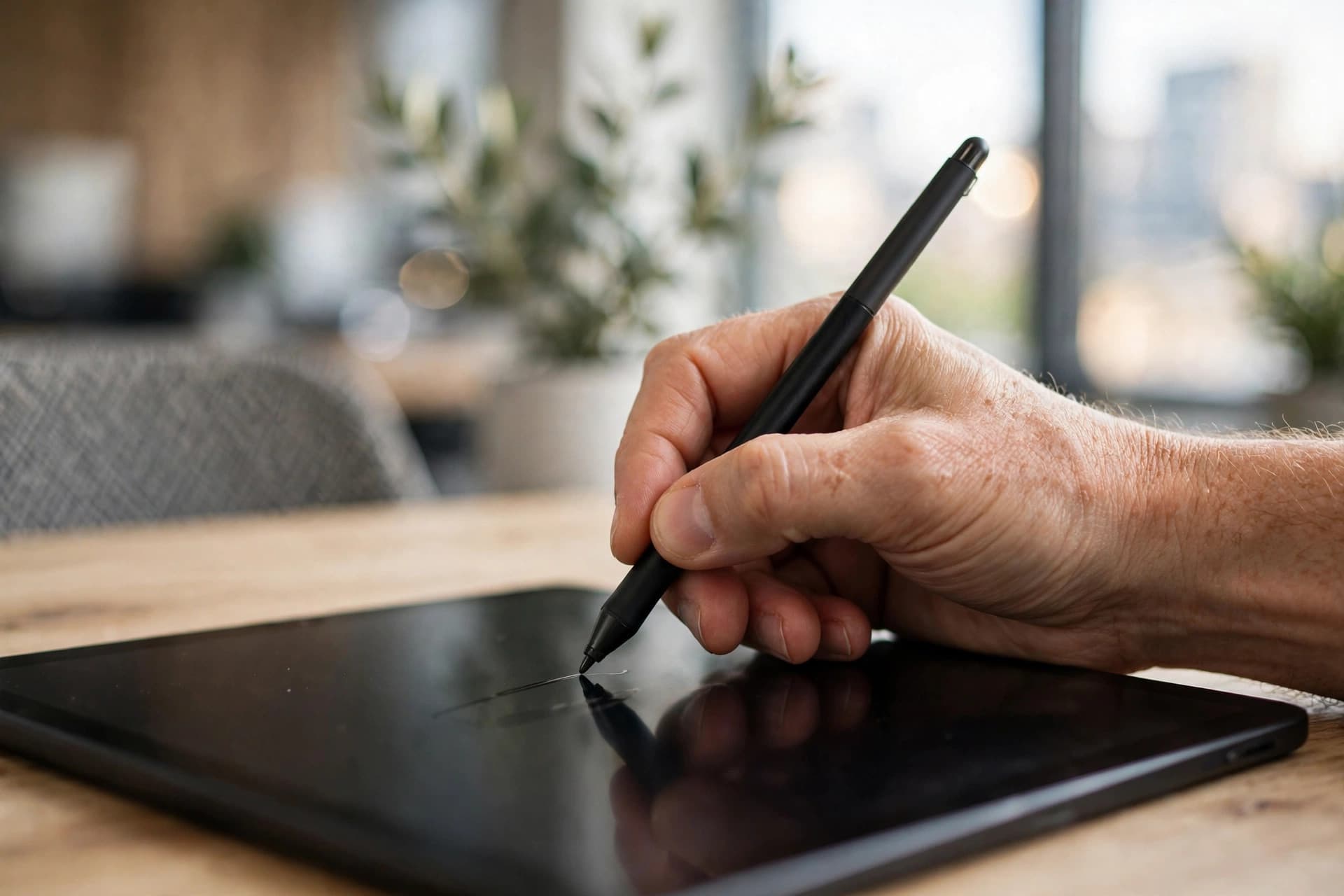
- Draw: finger or stylus on the signature canvas. Clear and retry as needed.
- Type: your name in a script font — the quickest clean-looking option on a phone.
- Upload: a photo or scan of your ink signature.
- Place it visually. The tool shows your pages — drag the signature onto the line, pinch or use the handles to size it. Jump between pages for multi-signature documents.
- Download the signed PDF from Chrome's downloads.
Tips for a good mobile signature
- Rotate to landscape for the drawing canvas if your signature is wide — more horizontal room, steadier stroke.
- Draw bigger than you think. A signature drawn large and scaled down looks smoother than one drawn tiny at final size.
- Typed beats drawn for formal docs. On contracts and official forms, a script-font typed signature reads as intentional and professional. Save the hand-drawn version for personal correspondence.
- Check placement before downloading. Zoom in on the signature line — a signature floating a centimeter above the line looks careless. Drag it until it sits naturally.
What you're actually adding (honest version)
PDFEdit places a visual electronic signature on the page — your signature as an image, positioned where you put it. For the overwhelming majority of real-world signing (job offers, freelance contracts, school forms, vendor agreements), that's exactly what's expected, and electronic signatures are broadly recognized.
It's not a certified digital signature: no cryptographic identity binding, no tamper-evident seal. Regulated documents that explicitly require qualified signatures need a dedicated provider. If you're unsure which kind your document needs, read electronic signature vs. digital signature before you sign.
Signing from Gmail and Google Drive
Most Android signing jobs start in Google's apps. The path of least resistance:
From Gmail: open the email, tap the attachment's download icon (don't just preview — preview doesn't give you a file). Then open Chrome, go to the sign tool, and upload from Downloads.
From Drive: open the file, tap the three-dot menu, choose Download. Same next step: upload to the sign tool in Chrome.
The trap to avoid: some apps offer "Open with" directly into a PDF viewer — that's fine for reading, but viewers don't sign. You need the actual file on the device, then the browser tool. Download first, always.
Finger vs. stylus: an honest comparison
- Finger — always available, surprisingly good for bold, simple signatures. Struggles with fine detail; keep your signature's flourishes broad.
- Stylus / S-Pen — dramatically better precision, closer to pen on paper. If your phone supports one and you sign documents regularly, it's worth keeping nearby.
- Typed — the pragmatic winner for formal documents regardless of input method. A script font at the right size looks deliberate and professional every time, with zero wobble risk.
Our recommendation for most people: typed for contracts and official forms, drawn (finger or stylus) when the document benefits from a personal touch — thank-you letters, personal agreements, creative work.
Sharing the signed PDF from Android
Chrome drops the signed file in your Download folder. Getting it to the recipient:
- Gmail: compose, attach from Drive/Files, send. For anything contractual, email is the right channel — it creates a timestamped record.
- WhatsApp/Telegram: share directly from Files. Convenient and common for everyday agreements in many regions — just be aware the paper trail is thinner.
- Drive upload: for contracts, upload the signed copy to a shared Drive folder so both parties access the same file. Name it clearly:
contract-signed-2026-09-23.pdf. - Nearby Share / Bluetooth: for in-person signings, beam it straight to the other party's device.
Whatever the channel, keep your own copy. Signed documents have a habit of being needed again — during disputes, renewals, or audits — usually at the moment you've forgotten where you put them. A dedicated "Signed" folder in Drive or Files costs nothing and saves real headaches.
A final word on what "signed" means here
It's worth repeating because it determines whether the signature does its job: PDFEdit adds your signature as a visual electronic signature — the image of your signature, placed where you put it. For job offers, rental agreements, freelance contracts, vendor forms, and the thousand other documents of ordinary business, that's the expected and accepted form.
What it doesn't do: cryptographically prove your identity or seal the document against tampering. If a specific transaction requires certified signatures — some government processes, certain financial instruments — that's a different service with identity verification built in. Knowing which kind you need before you sign is the entire battle; the signing itself takes a minute.
Do it with PDFEdit
Sign a PDF on Android: free, in Chrome, no app, no account, file stays on your device. On iPhone instead? The same tool works in Safari — see how to sign a PDF on iPhone.