The short answer: open PDFEdit's sign tool in Safari on your iPhone, upload the PDF, create your signature by drawing, typing, or uploading an image, drag it into place, and download the signed file. No app to install, no account to create.
Why the browser beats an app for this
The App Store is full of "free" PDF signers that want subscriptions, accounts, and your documents on their servers. For the everyday job — sign this contract, initial that form — a browser tool does the same work with none of the baggage. PDFEdit processes everything on your phone itself; the file never uploads anywhere, which matters when the document you're signing is a contract with your personal details in it.
Sign on iPhone, step by step
- In Safari, open the sign tool.
- Upload the PDF — from Files, iCloud Drive, or straight from an email attachment via the share sheet.
- Create your signature. Three options:
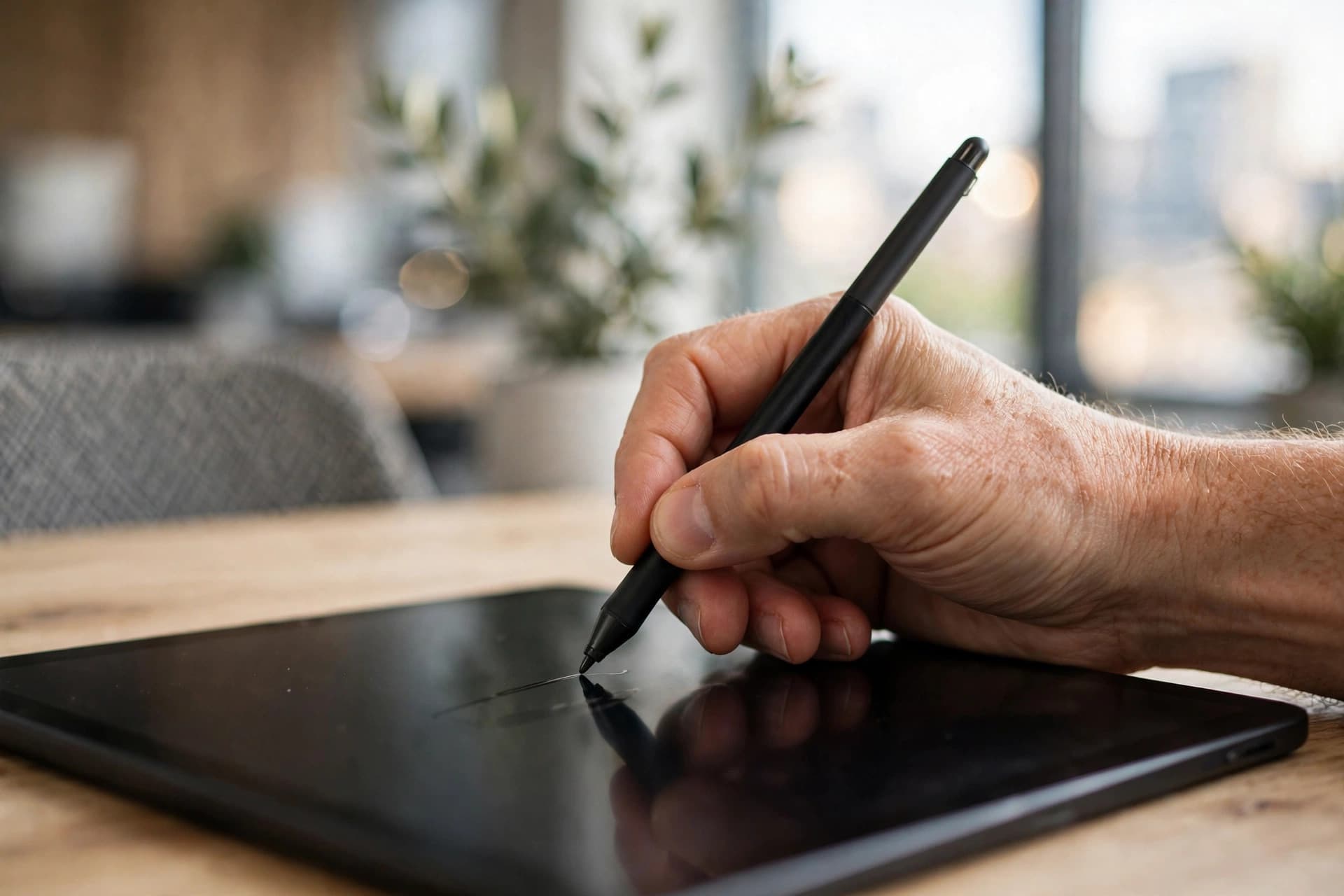
- Draw: sign with your finger (or Apple Pencil) on the canvas. Don't like it? Clear and retry — most people nail it on the second attempt.
- Type: enter your name and choose a script font. Fastest on a phone, and consistently neat.
- Upload: use a photo of your ink signature with a transparent or white background.
- Place it visually. Drag the signature to the signature line, pinch to resize. For multi-page documents, the page selector lets you jump to each signing spot.
- Download. Safari saves the signed PDF to Files → Downloads.
Getting a good finger signature
Finger signatures look shaky the first time — that's normal, and fixable:
- Zoom your hand, not the canvas. Sign with a full, relaxed stroke rather than tiny careful movements; small strokes amplify wobble.
- Go slow on curves, fast on straights. Most people's signatures are 80% flourish anyway — lean into it.
- Try typed for formal documents. A clean script font often looks more professional on a business contract than a wobbly finger drawing. Save the drawn version for when "hand-signed" matters visually.
Your signature is saved in the browser for the session, so signing a five-signature document doesn't mean drawing five times.
The fine print on validity
An honest note, because this is a legal-adjacent topic: PDFEdit adds a visual electronic signature — an image of your signature placed on the page. That satisfies the vast majority of everyday agreements (contracts, HR forms, client approvals), and electronic signatures are broadly recognized in most jurisdictions.
It is not a certified cryptographic digital signature with identity verification and tamper-evident sealing. If your document specifically requires a qualified/certified signature — some government filings, certain financial instruments — you'll need a dedicated trust service provider. Our electronic vs. digital signature guide explains the difference plainly.
Signing straight from email attachments
The most common iPhone signing flow starts in Mail, not in a browser:
- Open the email and tap the PDF attachment to preview it.
- Tap the share sheet (the square with the arrow), then find Save to Files.
- Open Safari, go to the sign tool, and upload the PDF from Files.
- Sign, place, download — the signed file lands back in Files → Downloads.
- Share it from Files via the share sheet: Mail, Messages, AirDrop, WhatsApp, whatever the recipient uses.
It sounds like several steps, but after the first time it's under a minute. The key insight: iOS treats the browser as a first-class citizen here — no app needs to sit between your attachment and your signature.
Handling multi-signature documents
Contracts that need your signature in three places (and initials on every page) are where phone signing gets tedious — unless you work the system:
- Create the signature once. Draw or type it a single time; the tool keeps it available for the whole session. Don't re-draw per placement.
- Use the page selector to jump between signing spots rather than scrolling through the document.
- Place all signatures before downloading. Every placement is an editable layer until export — nudge them into perfect alignment, then download once.
- For initials, the typed mode at a small size works beautifully: your initials in a script font, placed consistently in each margin.
And when the document comes back for a second round of signatures, you already know the drill — the whole flow is repeatable in the same way.
Saving your signature for reuse
Drawing your signature every time gets old fast. Set it up once, properly:
- Draw it once, carefully. In the sign tool, take two minutes to produce the best finger signature you can — good lighting on the screen, steady hand, full-size strokes. This becomes your reusable signature for the session.
- Typed signatures are the reliable default. If your drawn signature varies (and finger signatures do vary), the typed version in a script font is identical every time. For recurring business signing, consistency beats personality.
- Keep an uploaded image for the best of both. Sign on paper with a pen, photograph it in good light against white paper, and upload that image. You get a real ink signature's character with perfect repeatability. Trim the photo close so no paper edges show.
A note on where it's stored: your signature lives in the browser session on your device — convenient, and another reason browser-local tools suit signing. Nothing about your signature transits any server.
Sharing the signed PDF from iPhone
The signed file downloads to Files → Downloads. From there:
- Mail: share sheet → Mail, attach, send. The classic route.
- Messages/WhatsApp: share sheet directly — fine for informal agreements, less so for contracts (use email for anything that matters).
- AirDrop: to your own Mac for archiving, or to someone in the room.
- Save back to the thread: if the document came from an email, reply to that same thread with the signed file attached — it keeps the paper trail in one place, which future-you will appreciate during any dispute.
Name the file before sending: contract-signed-2026-09-23.pdf beats contract-signed.pdf beats document(1).pdf.
Do it with PDFEdit
Sign a PDF on your iPhone: free, in Safari, no app, no account, nothing uploaded. Android user? Same tool, same workflow — see how to sign a PDF on Android.